Query Editor
Using the Editor
A practical tour of the day-to-day flows — switching connections, autocomplete, AI assistance, tabs and shortcuts.
Running your first query
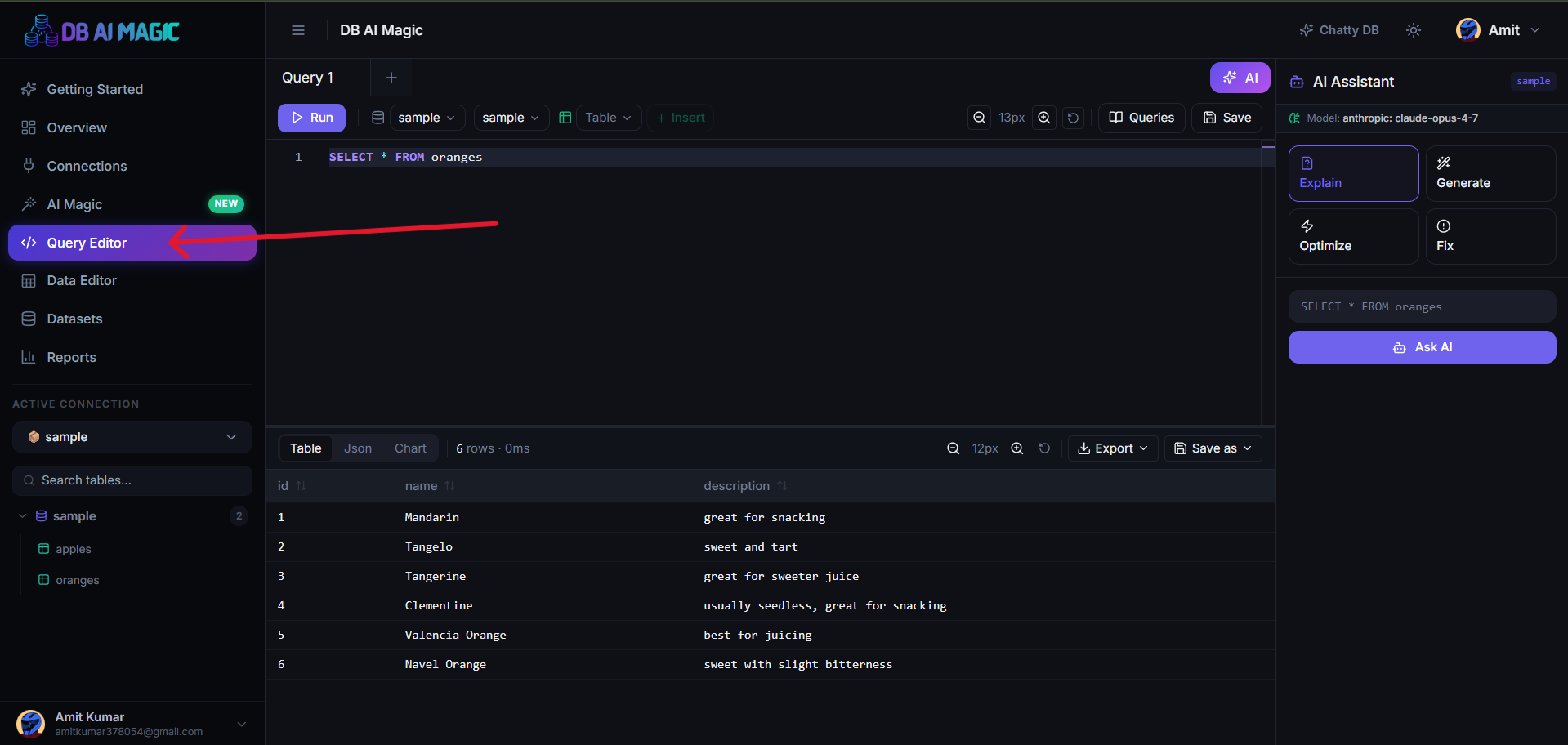
Open the Query Editor
Click Query Editor in the sidebar. The page opens with your active connection selected.Pick a Connection and Database
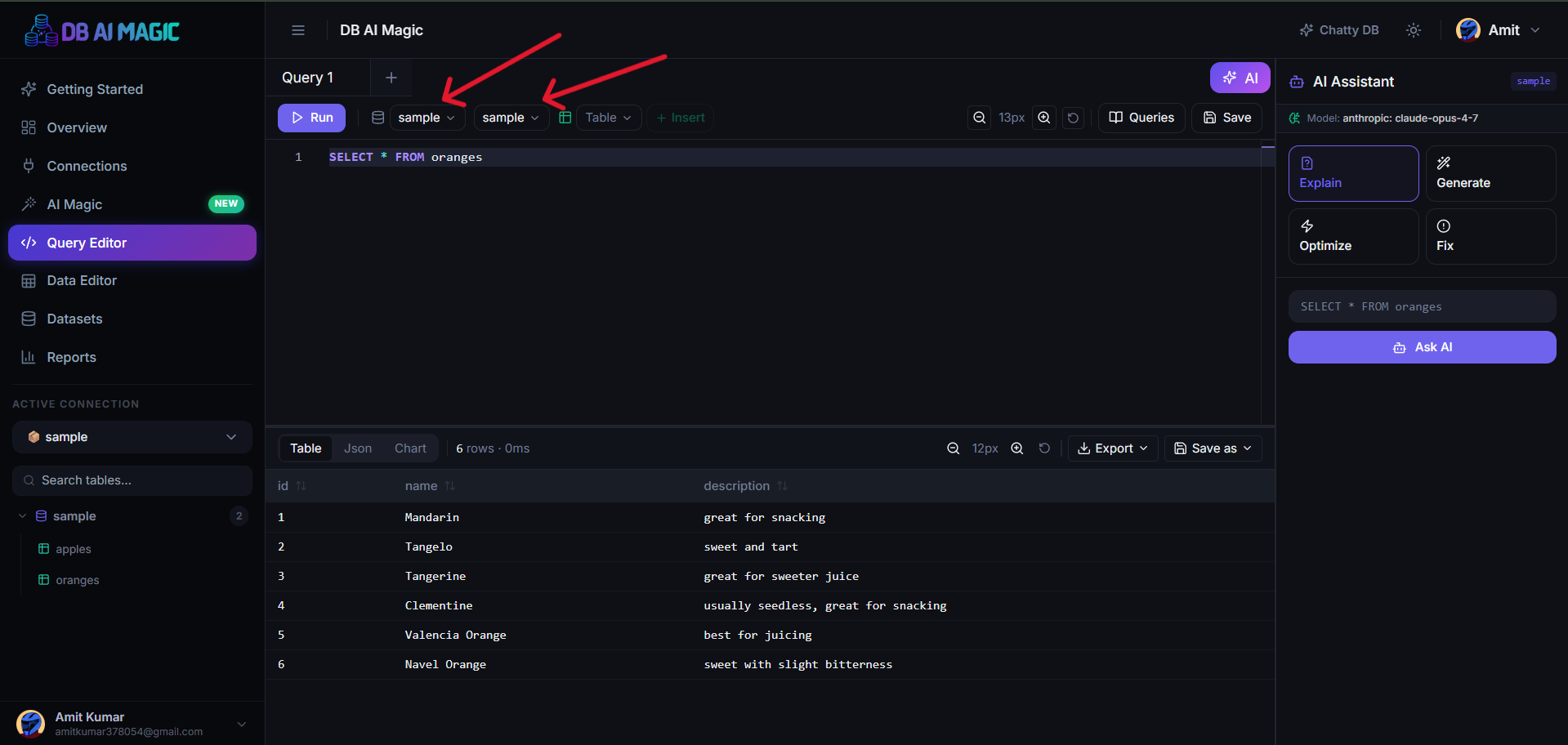
Use the dropdown above the editor to choose the Connection and database you want to query.Write your SQL
Type or paste your statement. As you type, autocomplete suggests tables, columns and keywords pulled live from your schema.Run
Press Ctrl+Enter (or ⌘+Enter on macOS) or click Run. Results stream into the grid as they arrive.
Switching connection / database
Use the dropdowns at the top of the editor. Changing connection reloads the schema sidebar; changing database keeps the editor open but re-runs subsequent queries against the new database.
Autocomplete & schema browsing
Start typing a table name and DB AI Magic shows matching tables from the current database. Type a dot after a table alias and it offers the columns. The schema sidebar mirrors the same data and supports click-to-insert.
Click-to-insert
Click a column in the sidebar to insert its name at the cursor. Right-click a table for actions like SELECT *, describe columns, or open in Data Editor.
Working with tabs
Open as many tabs as you want — each has its own connection, database, query and result set. Tabs survive page reloads, so you can come back to in-progress investigations later.
Asking the AI for SQL
Open the AI panel on the right. Type a question (“customers who spent over ₹10k this month with their phone number”), hit enter. The AI inspects your schema, drafts the SQL, and inserts it into the editor for review. You can run it as-is or tweak.
Better answers from better prompts
Saving and sharing queries
Click Save (or use Ctrl+S) to save the active query with a name and optional tags. Saved queries appear under the editor and can be promoted into datasets that power BI reports.
Keyboard shortcuts
- Ctrl+Enter — run query
- Ctrl+S — save query
- Ctrl+T — new tab
- Ctrl+W — close tab
- Alt+Up / Alt+Down — move line
- Ctrl+/ — toggle line comment
- Ctrl+D — duplicate line