Query Editor
Query Editor
The Query Editor is where you write and run SQL against any of your connections. It looks and feels like a desktop SQL IDE, but lives in your tab.
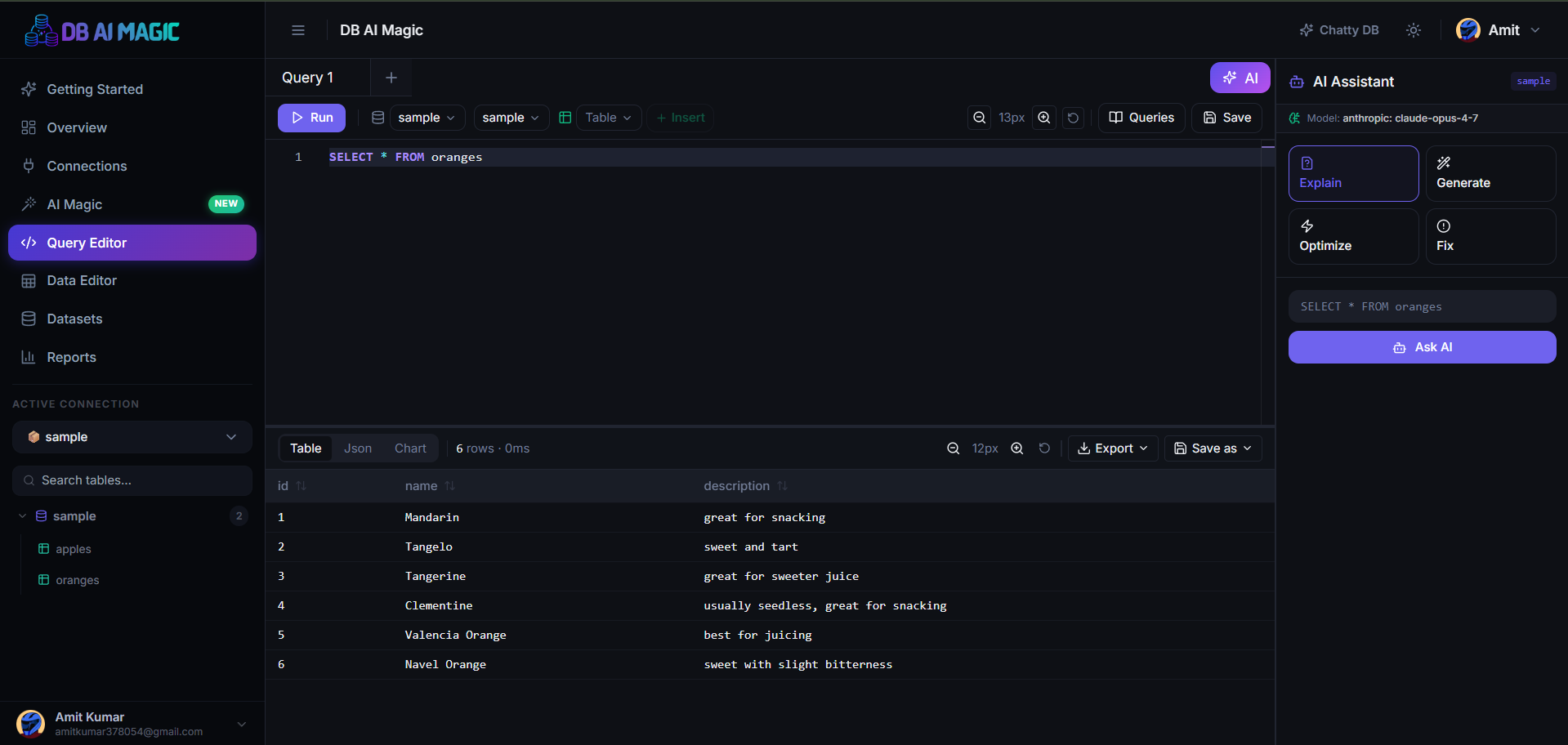
Anatomy of the page
The editor is split into three regions:
- Schema sidebar (left) — your databases, tables and columns. Click any item to insert its name into the editor.
- Editor (centre) — multi-tab SQL with autocomplete, syntax highlighting and inline error markers.
- AI panel (right) — ask in natural language, the AI drafts SQL using your schema as context.
What it can do
- Run any SQL the connected engine understands
- Open multiple query tabs side-by-side
- Stream large result sets so the grid never freezes
- Save a query for re-use across the org
- Browse every query you've ever run in History
- Export results to CSV, Excel or PDF in one click
The results grid
Results land in a powerful grid below the editor: sortable columns, column resize, pagination, JSON cell expansion, and a compact mode for dense data. Hover any cell to see its full value, even when truncated.
Huge result sets
For tables with millions of rows, results stream in chunks. The grid paints as data arrives — there's no “loading forever” experience for big queries.
History and saved queries
Every query is logged to history automatically with its execution time and row count. From history you can re-run a query, copy it, or promote it to a saved query so the whole team can use it later.
For the keystrokes and tricks of using the editor day-to-day, see Using the Editor.