Connections
Creating a Connection
The general flow for adding any database. Engine-specific fields are covered on the next page.
Before you start
You'll need three things:
- Host or file — server hostname/IP, or a SQLite file
- Credentials — username and password (or a connection string)
- Network access — your database must allow inbound connections from DB AI Magic
Hosted databases
For cloud-hosted databases (AWS RDS, Azure SQL, MongoDB Atlas, etc.) make sure DB AI Magic's IP range is in your security group / IP allow-list. Many engines also require SSL — turn it on and we'll handle the rest.
Step-by-step
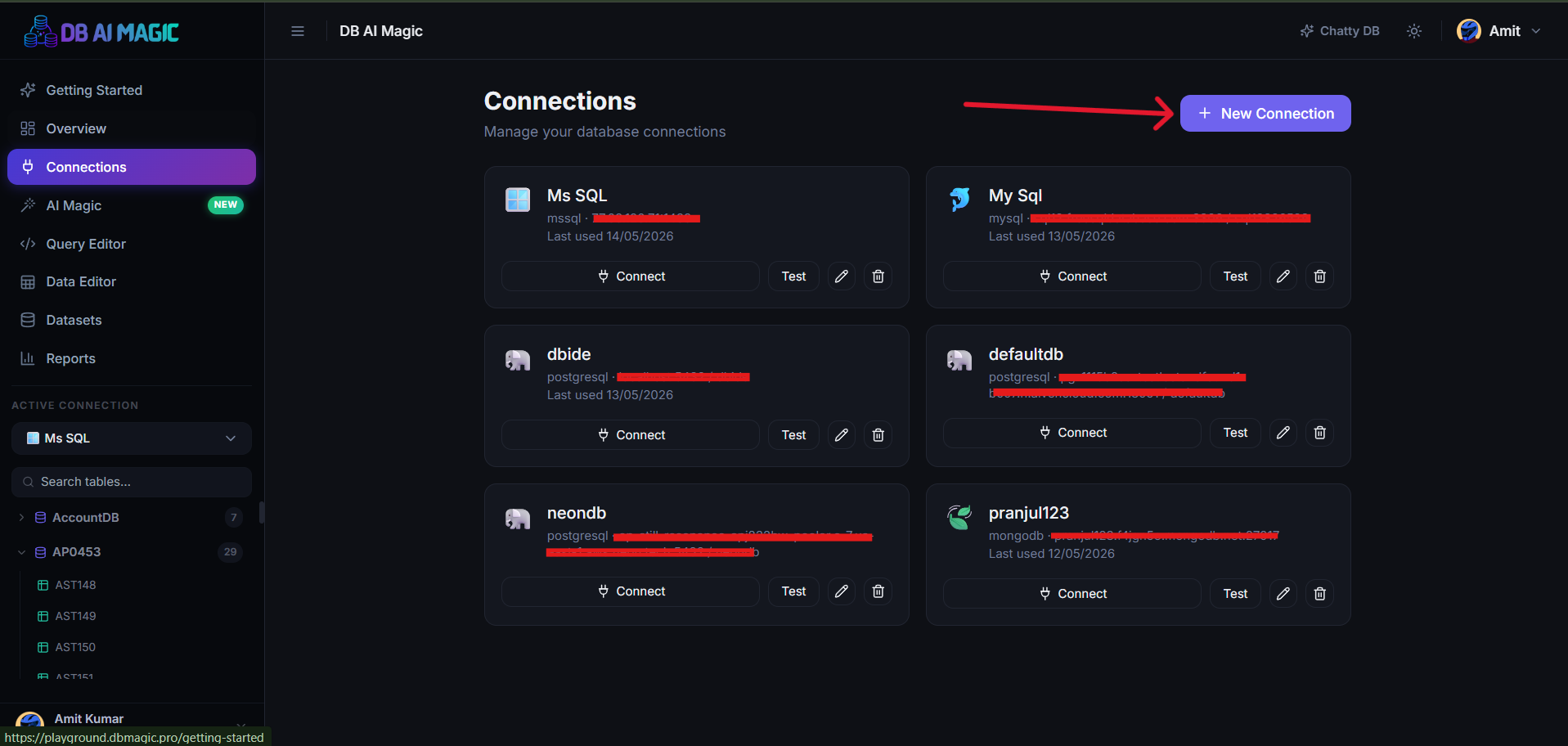
Open Connections
Click Connections in the sidebar, then New Connection at the top right.Pick the engine
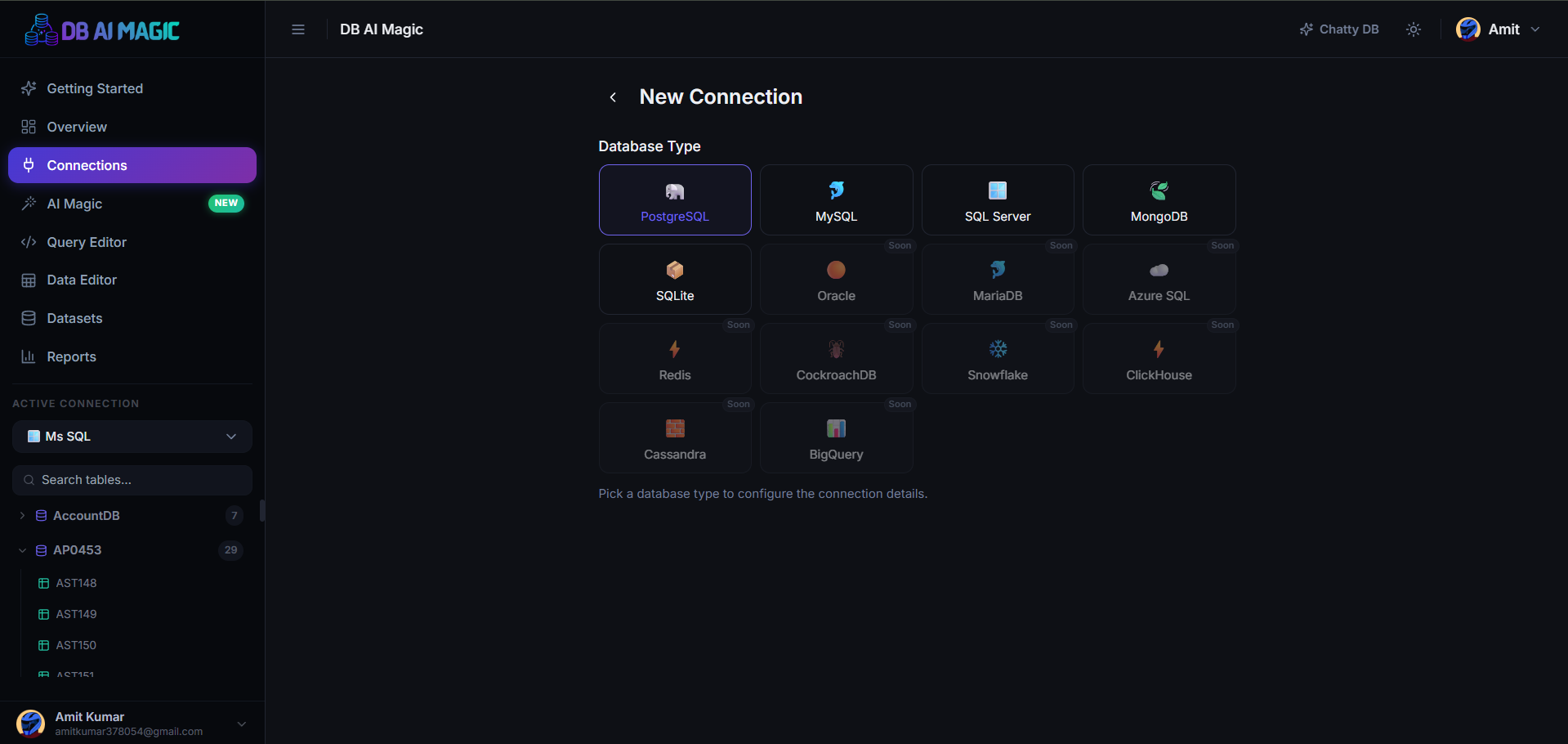
Choose your database type from the list. The form below adjusts to show the right fields for that engine.Fill in the details
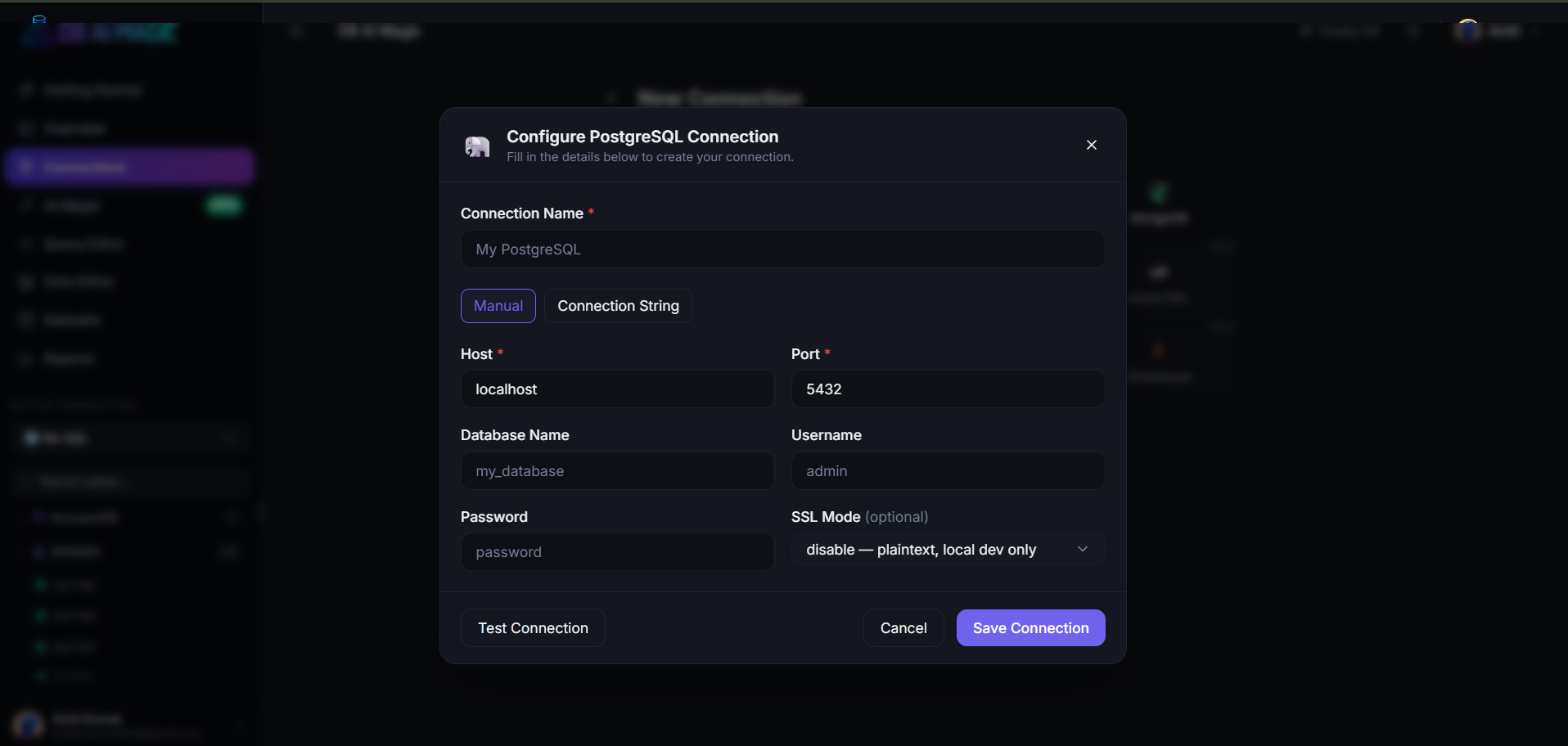
Enter a friendly name (e.g. Production Reporting), then the connection details. For most engines that's host, port, database, user and password.Test
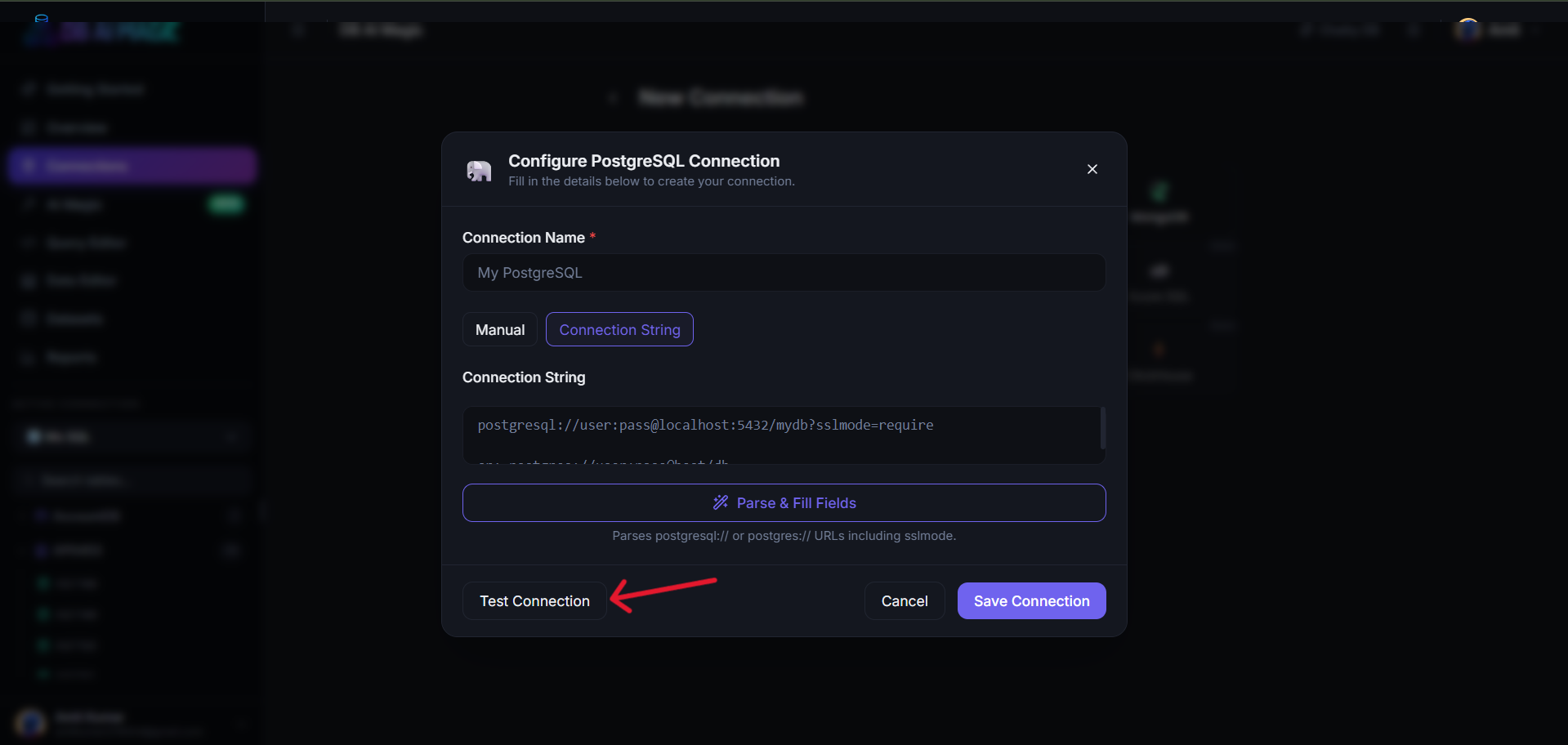
Hit Test. We open a real connection and run a tiny query to confirm everything works. The result is shown inline.Save
Once the test passes, save. The connection appears in your sidebar and is ready to use.
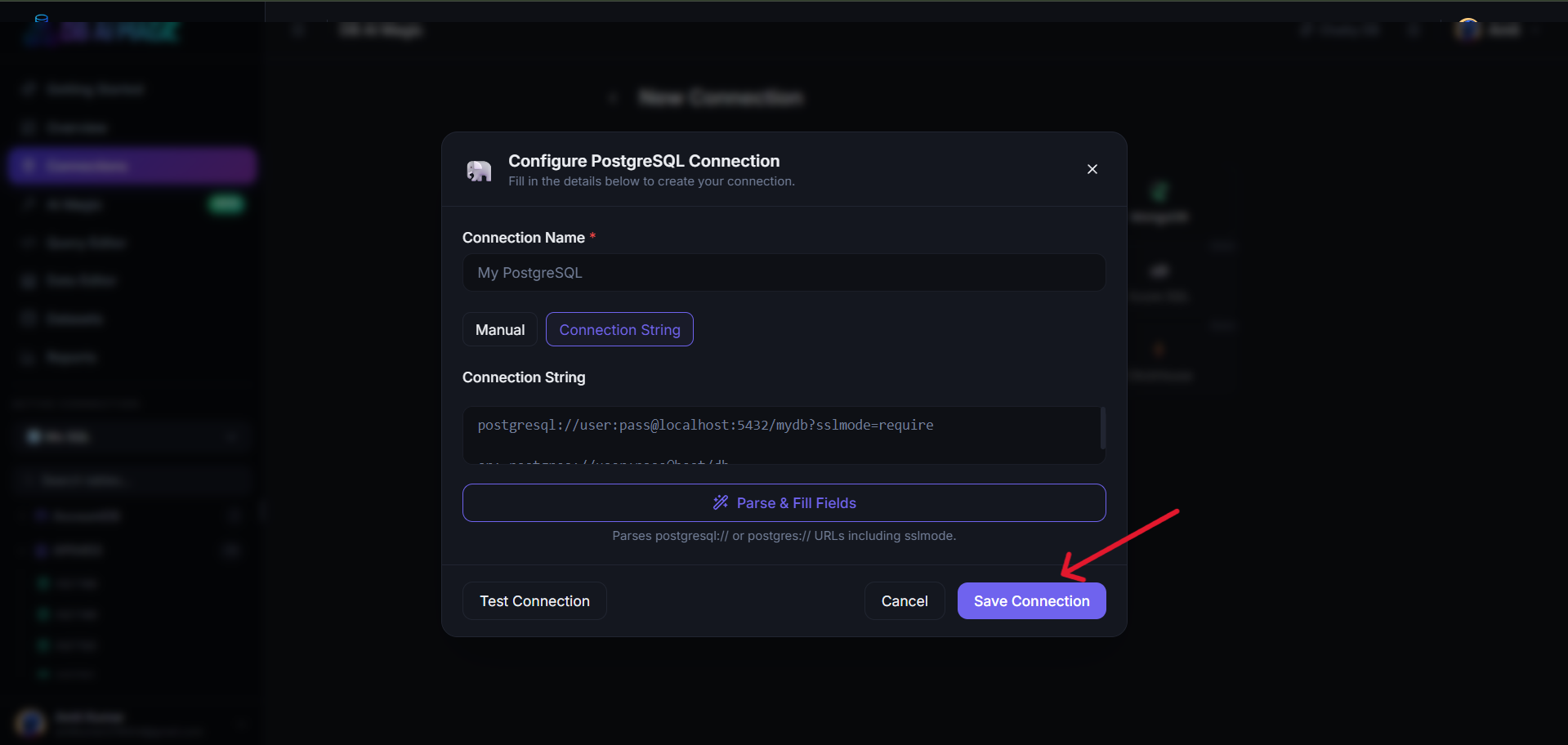
Testing the connection
Testing happens against the live database — there's no caching or approximation. If the test passes, every other DB AI Magic feature will work. If it fails, the error from your database is shown verbatim so you can diagnose it without leaving the page.
Common test results
- Connection refused — the host is unreachable from DB AI Magic. Check the firewall / security group.
- Authentication failed — wrong username, password or authentication mode. Confirm by logging in with the same credentials from another tool.
- SSL required — turn on SSL in the form, or paste your CA certificate for a self-signed setup.
Common fields explained
- Name — your label for this connection (purely cosmetic)
- Host — DNS name or IP of the server
- Port — defaults to the engine's standard port
- Database — default database the editor lands in
- User & Password — your database credentials, encrypted on save
- SSL — toggle TLS, paste CA cert if needed
Troubleshooting
- Slow connect — usually a DNS issue or a far-away region. Try the same details from another tool to confirm.
- Random disconnects — check the keep-alive settings on your database; some hosts kill idle connections aggressively.
- “Access denied” — the user exists but lacks privileges. Grant
SELECTat minimum, or wider access depending on what you want to do.
Once your connection is saved, head over to Connection by engine for any engine-specific quirks, or jump straight into the Query Editor.