Data Editor
Editing Rows
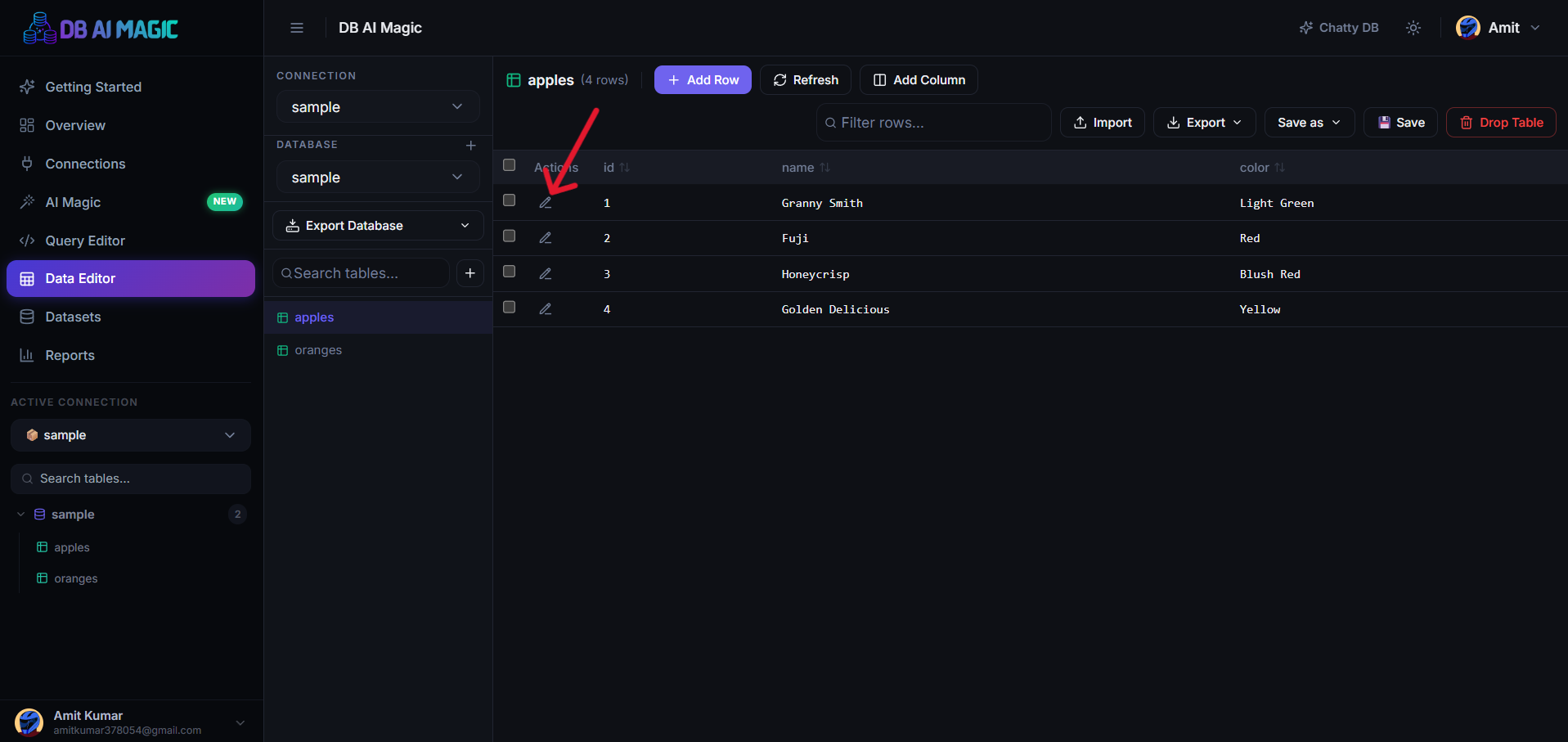
Add, edit and delete rows inline. All changes are staged until you commit them.
Editing cells
Double-click any cell — or just start typing while a cell is focused — to edit it. The cell turns yellow to show that the change is staged. Press Enter to commit the local edit, Esc to revert it.
Type-aware editors
Date columns open a calendar. Boolean columns toggle. JSON columns open an expandable editor. Foreign-key columns autocomplete from the parent table.
Adding rows
Click Add row at the top of the grid — a blank editable row appears. Fill in the columns and pressEnter to stage. You can add as many rows as you want before saving.
Deleting rows
Select one or more rows (click + Shift-click for a range, or Ctrl-click for individual rows) and hit Delete. Deletion is also staged — nothing is removed from the database until you commit.
Bulk paste from Excel
Copy a range from Excel or Google Sheets, click into the top-left cell of the area you want to fill in DB AI Magic, and paste. The grid spreads the values across the matching cells and stages them all for review.
Match the columns first
Undo and revert
- Ctrl+Z — undo the last staged change
- Revert all — drop all staged changes without saving
Saving changes
Click Save to commit. All staged inserts, updates and deletes are sent to your database in a single transaction — either every change succeeds or none of them do. The grid refreshes to reflect the live database after save.
Constraint violations