Schema Viewer
Exporting Diagrams
Export the schema diagram as an image, a PDF, or as machine-readable JSON for use elsewhere.
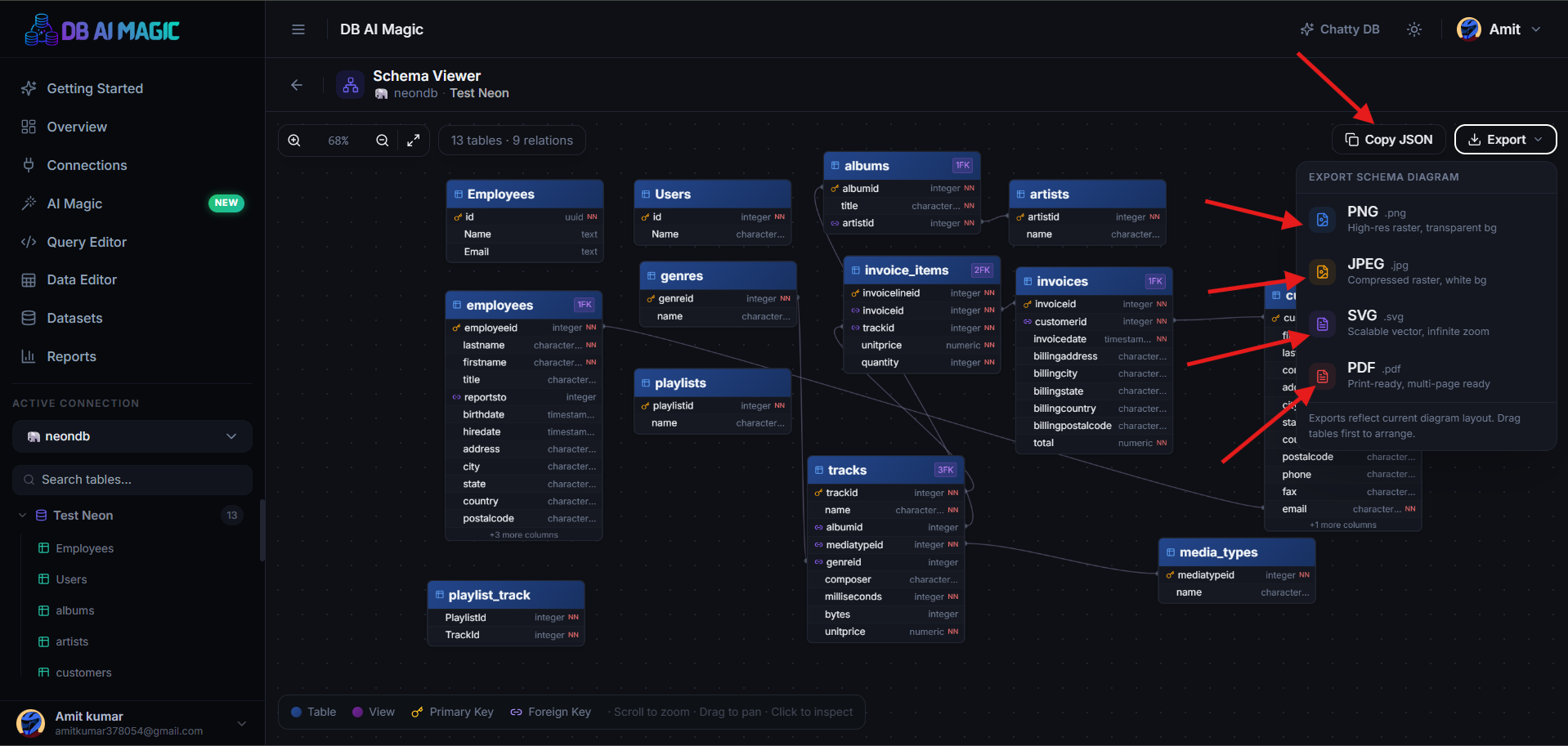
Use the Exportmenu at the top of the diagram to produce a shareable copy of your schema. Pick the format that matches where it's going next.
Image formats
PNG Best for slides
Pixel-perfect raster image with transparent background. Drop it straight into Keynote, Google Slides, or Notion. The export uses a high DPI multiplier so the diagram stays sharp on a retina screen.
JPEG Smaller file
Smaller file size than PNG, at the cost of slight compression artefacts. Good when you need to email the diagram and don't care about transparency.
SVG Best for print
Vector format that scales infinitely without blurring. Use SVG for anything you'll print or paste into a vector tool like Figma or Illustrator. SVGs also stay editable — table names, columns and arrows are real text elements.
Multi-page PDF with the diagram on page one and an optional appendix listing every table's columns and types. Useful for leaving an audit trail or attaching to documentation.
JSON (Copy JSON)
Use Copy JSON to put a machine-readable representation on your clipboard. The JSON includes every table, column, type, and foreign-key relationship — perfect for feeding into another tool, generating types, or driving documentation.
Stable shape
Tips for crisp exports
- Arrange first, export second. Use the auto-layout button or drag tables into a clean arrangement before exporting.
- Hide tables you don't need. A focused diagram of 8 tables is more useful than a busy one of 80.
- Zoom to fit. The exporter captures whatever fits the visible canvas — start with Fit-to-screen for full coverage.
- Pick PNG for slides, SVG for print, PDF for audit trails.